

Pages
Map
The Map control allows users to embed an interactive Google Map directly into their visualization interface. It supports precise location display via coordinates and offers zoom control and switchable map styles — ideal for applications involving geolocation, asset tracking, or area monitoring.
Key Parameters
Latitude & Longitude
To define a map position, enter coordinates in decimal format:
- Correct format:
39.119095, 117.221850 - Incorrect format:
1°09'33.4"N 104°02'56.4"E(will not work)
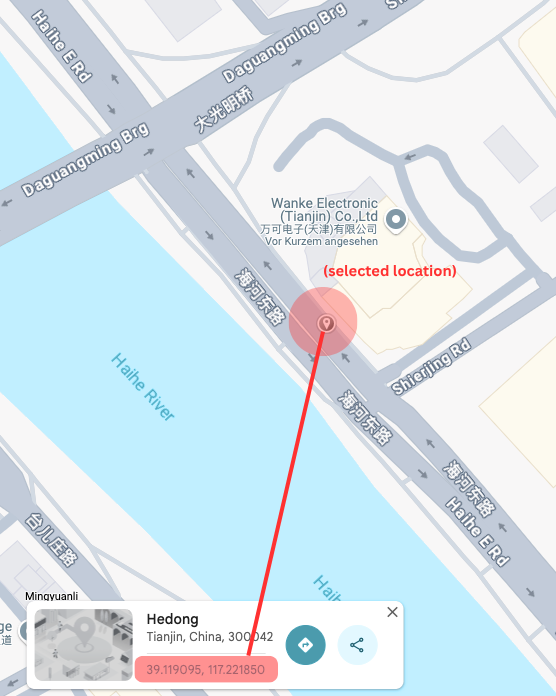
How to get correct coordinates:
- Left-click (or long-press on mobile) a location in Google Maps.
- A popup box will appear at the bottom.
- Use the format shown there (e.g.
39.119095, 117.221850).
Note: The first number is always latitude, the second is longitude.
Zoom Level
The Zoom field controls how far the map is zoomed in. Enter a number between 1 and ~20 (higher = closer zoom). Google Maps supports zooming beyond 20, but values >20 generally do not increase detail meaningfully.
Zoom Level Reference Table
| Zoom | Approx. Visible Width | Use Case |
|---|---|---|
| 1 | ~20,000 km (entire globe) | Earth overview |
| 5 | ~3,000 km | Continent |
| 8 | ~1,000 km | Country/Province |
| 10 | ~160 km | Metro region / Large city |
| 13 | ~25 km | Small city / District |
| 15 | ~5–10 km | Village / Local infrastructure |
| 18 | ~1 km | Street-level |
| >20 | Zooms further (not practical) | Ultra detail (limited visibility) |
Map Type (Map / Satellite)
Users can toggle between Map view and Satellite view in the frontend via the top left corner toggle. This allows them to switch between road maps and aerial imagery interactively.
Use Cases
- Show asset or machine location on a global map
- Visualize delivery or sensor location
- Use zoomed-in street-level view to track urban deployments
- Combine with live data to display status in geospatial context
Summary
The Map control offers real-time geographic visualization with precise coordinate input and customizable zoom. By understanding the formatting and zoom level logic, you can adapt the map view to fit any geospatial use case in your PLCVisu project.