

Alarms
Alarm Settings
A Settings refers to a configurable parameter or option that controls the behavior, display, or functionality of a feature in the alarm system.
Settings determine how users interact with alarms, how data is presented, and what options are available in the visualization.
Paginator Behavior
| State | Page Size | Page Options | Description |
|---|---|---|---|
| Enabled | 10 (default) | 10, 25, 50, 100 | Paginator is active; shows alarms in pages; user can navigate between pages. |
| Disabled | Inactive | Inactive | Paginator is inactive; Page Size and Page Options cannot be changed; alarms are shown as a continuous list. |
Confirm all buttons
| State | Alarm Display | User Interaction | Notes |
|---|---|---|---|
| Enabled | Shows all alarms (active, acknowledged, history) | Fully enabled: acknowledge, filter, navigate | Alarms are fully visible and manageable |
| Disabled | Alarms are inactive / not manageable | All controls inactive | Alarms cannot be acknowledged or navigated |
Filter Behavior
| State | Filter Field Visibility | Results Behavior | Notes |
|---|---|---|---|
| Enabled | Visible | Filter can be applied to alarm results | Users can enter criteria to filter alarms |
| Disabled | Hidden / Inactive | Alarm results cannot be filtered | Filter input and functionality are inactive |
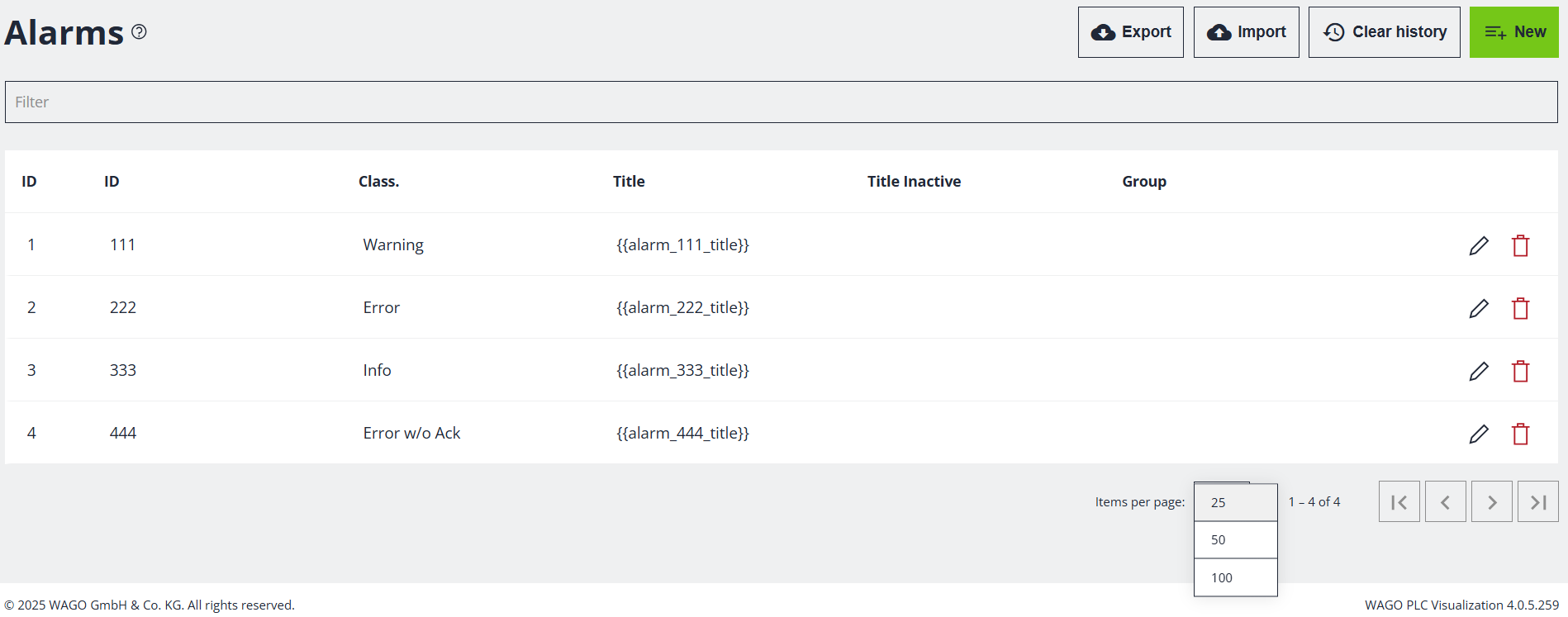
Column
| Field | Type | Description |
|---|---|---|
Group |
string | Logical category for the alarm (e.g. "performance", "security"). |
State |
string | Dynamic UI control that changes its label, image, and behavior based on defined conditions. |
Tag |
string | It's fundamental building block used to define elements on a web page. |
ID |
string | Unique identifier for the alarm. |
Title |
string | Title name of the alarm. |
Status |
string | One of: active, acknowledged, resolved. |
Class |
string | An attribute to categorize elements for styling or scripting. |
Timestamp |
string | Timestamp when the alarm was generated. |
Action |
string | One of: info, warning, critical. |
Actions
| Action | Description | Typical Use Case |
|---|---|---|
| Acknowledge | Marks the alarm as seen or noted, but does not stop it from being active. | Used to indicate that someone is aware of the alarm and is taking action. |
| Details | Shows more information about the alarm, such as source, severity, or history. | Used to investigate or understand the context and impact of the alarm. |
| Silence | Temporarily suppresses notifications or sounds from the alarm. | Used to prevent repeated alerts while the issue is being addressed. |
Sorting
-
ID → Unique identifier for each alarm.
-
Title → Short description of the alarm.
-
Status → Current state of the alarm (e.g., Active, Acknowledged, Silenced).
-
Class → Severity or category of the alarm (e.g., Critical, Warning, Info).
-
Timestamp → Date and time when the alarm occurred.
Examples of Alarm Table
| ID | Title | Status | Class | Timestamp |
|---|---|---|---|---|
| 101 | Overtemperature | Active | Critical | 2025-11-19 09:15 |
| 102 | Motor Overload | Acknowledged | Warning | 2025-11-19 09:20 |
| 103 | Low Pressure | Active | Alarm | 2025-11-19 09:25 |
| 104 | Sensor Disconnected | Silenced | Info | 2025-11-19 09:30 |
| 105 | Power Supply Fault | Active | Critical | 2025-11-19 09:35 |
critical
warning
info
Action
Timestamp
Class
resolved
acknowledged
active
Status
Title
ID
Tag
State
"security"
"performance"
Group